An important type of training material, often found in courses in the FLPPS LMS, is called an Assignment. Whether you want students to write a short response, an extended essay, or do an art project, the Assignment allows users to upload a document, record their screen, or even link a video to the LMS.
Another way you might encounter an Assignment in the LMS is when you assign training from an external partner in the FLPPS LMS. After users have taken their training on the external platform, they will submit a copy of their certificate to be approved. Here is how to view and Approve or Reject those certificates.
TABLE OF CONTENTS
How to Approve a Certificate or Assignment
View Submitted Certificates
Option 1: On Your Dashboard
The first place you can find any pending certificates that need to be approved is on your dashboard in the Status of Assigned Training widget.

In the Assignments to Evaluate tab, click the training that you need to review.
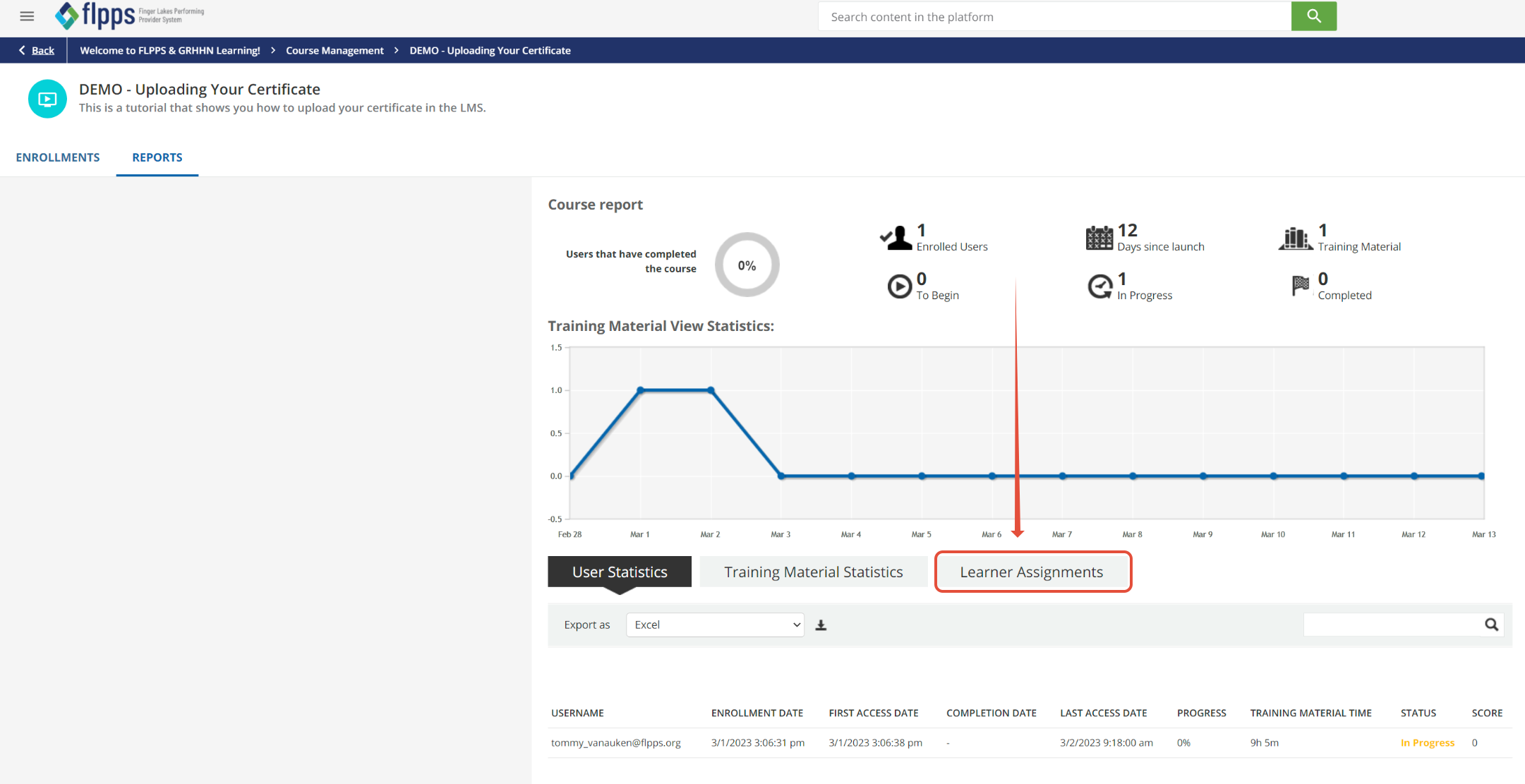
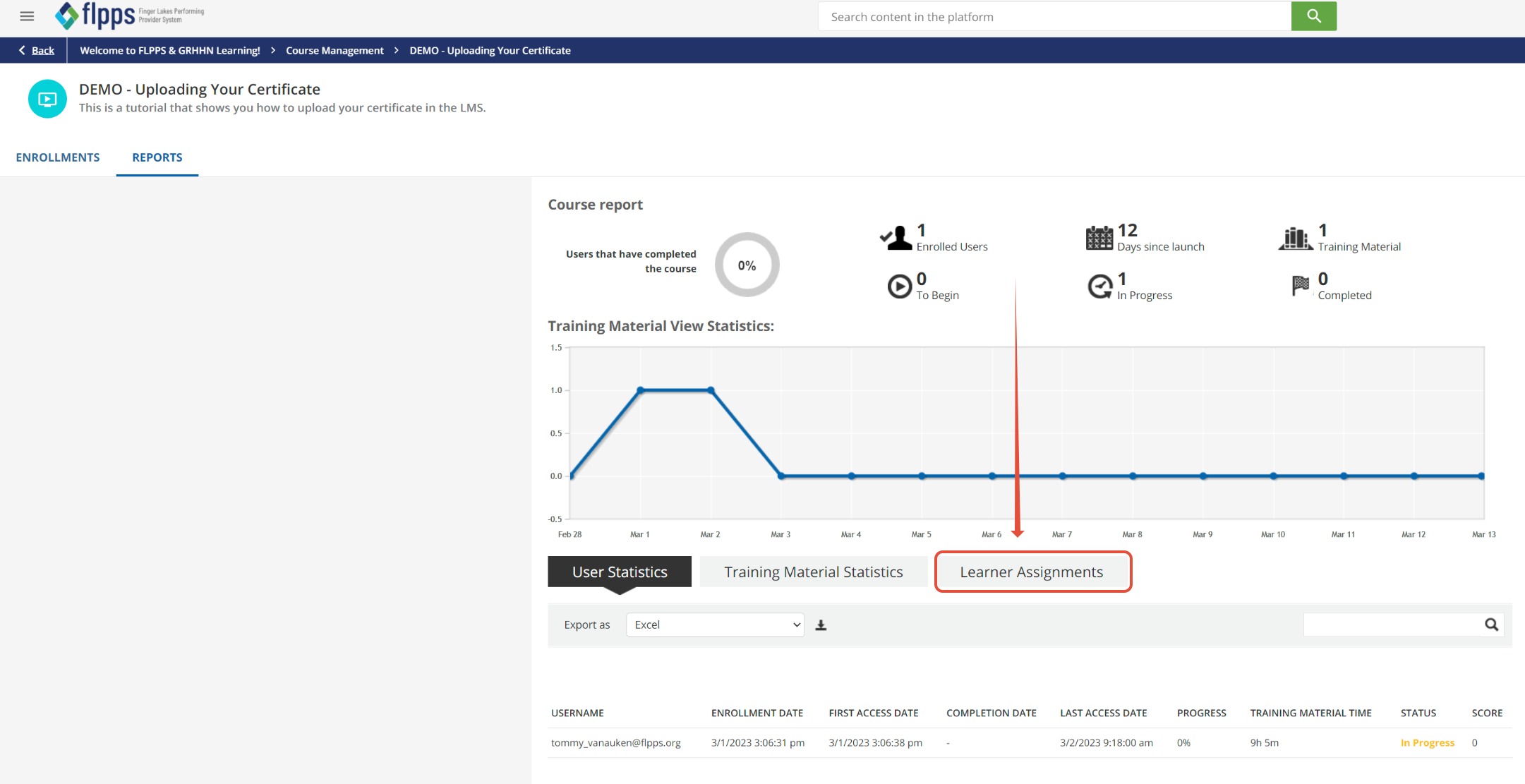
Navigate to the Learner Assignments tab of the Course Report page.
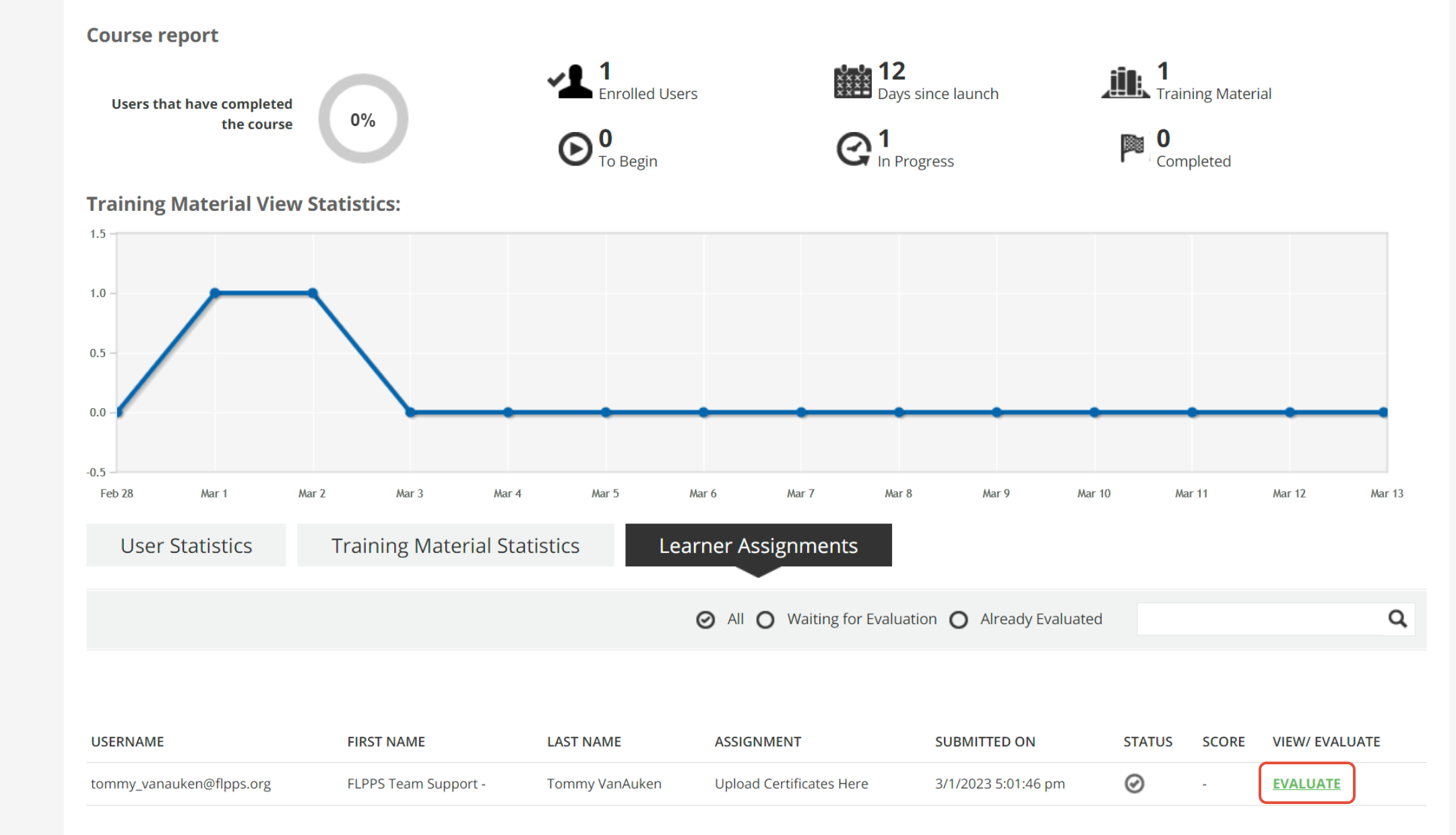
On the bottom right you will see the green Evaluate button. Click it.
We will return to this page after exploring the second option for arriving at this page.
Option 2: On the Instructor and Manager Tasks Page
From anywhere in the LMS, navigate to the top left of your window and find the hamburger menu pictured here:
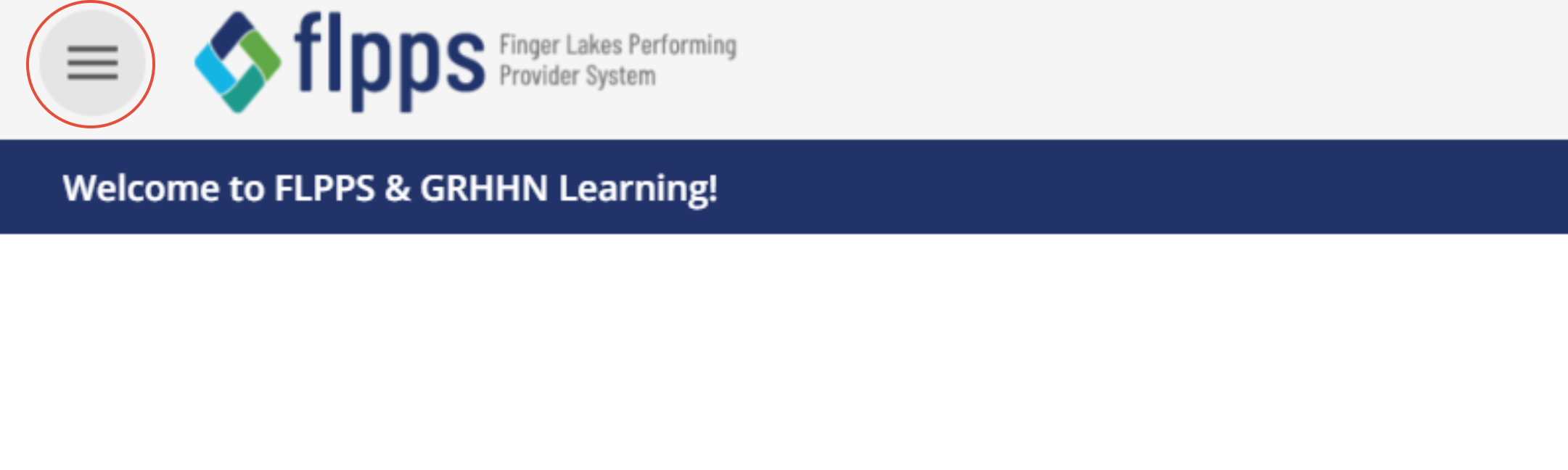
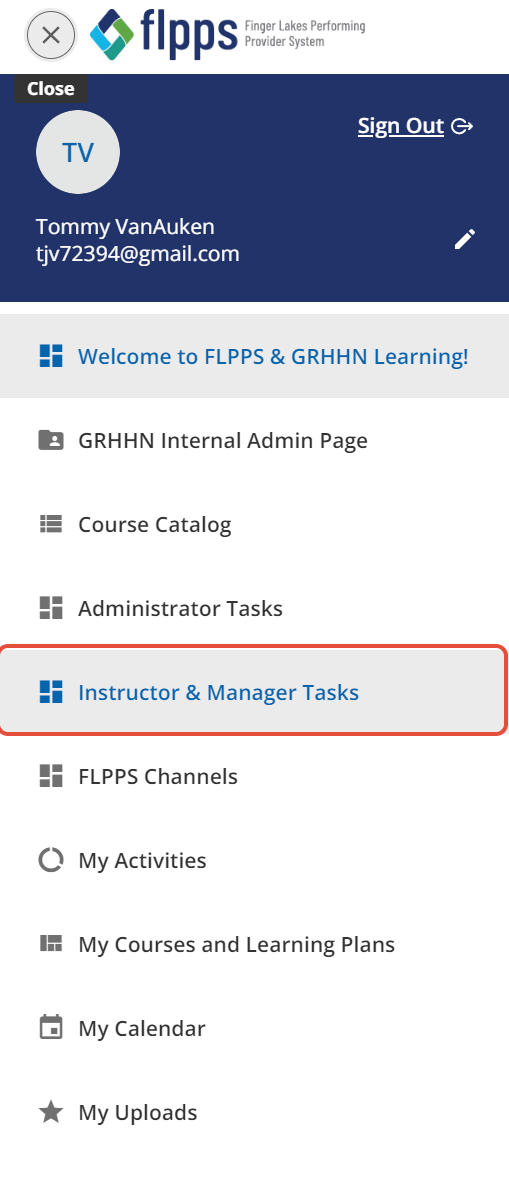
This will open the menu below. Select Instructor & Manager Tasks.
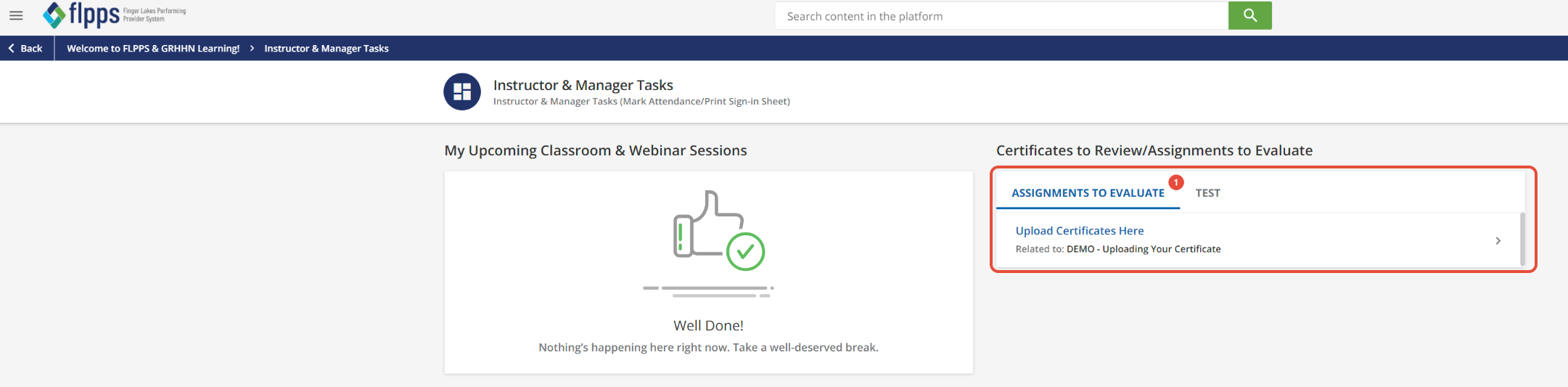
From this screen you will be able to view any Assignments To Evaluate:
The next series of screens will look familiar:
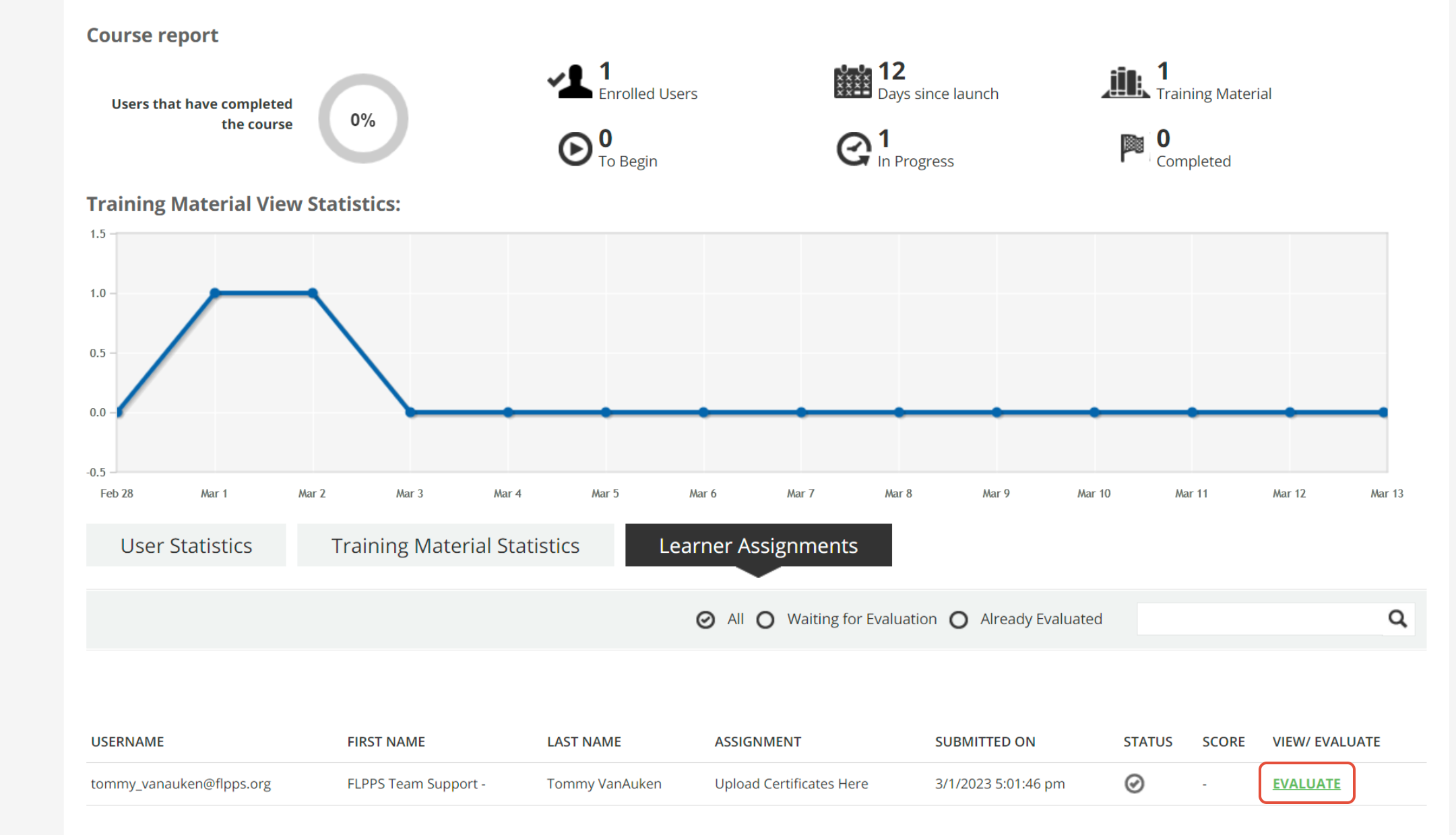
Approve or Reject the Submission
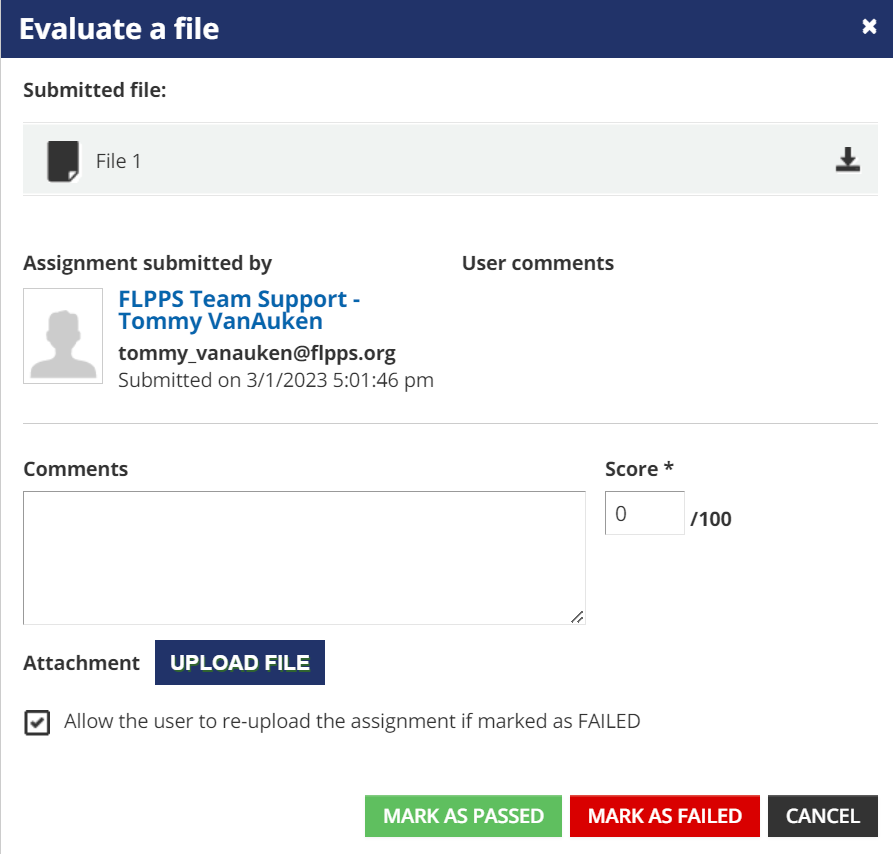
Once you reach the screen below, you will mark the assignment as passed or failed. If the user uploaded the incorrect certificate, you can mark it as failed, and the user will be able to try again to upload the correct certificate.
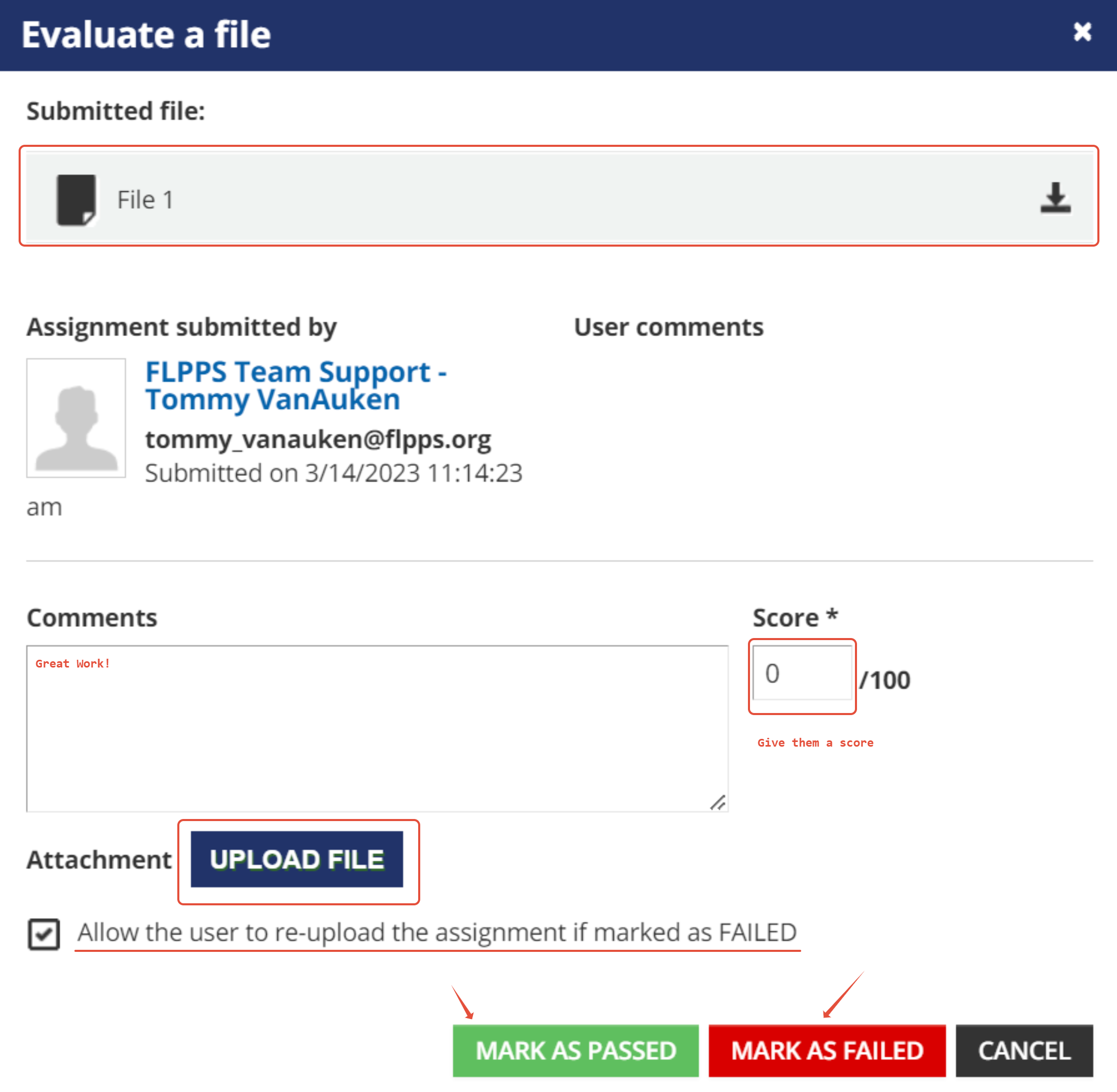 There are 6 main points of feedback on this page.
- The file that the user submitted will be attached to the top of this page. Click the Download Icon to download this to your desktop. Open the downloaded document to see if it is the correct certificate.
- The comments section allows you to communicate feedback on the submitted document.
- The score section allows you to give a grade. For approving certificates, you can put 100 (or any number, as they are not graded assignments) then click Mark as Passed.
- The Upload File button allows you to upload more in-depth comments or a marked up version of their assignment for better feedback. This is not required.
- The checkbox below the Upload File button lets the user resubmit their assignment.
- Finally, the bottom three buttons let you Mark as Passed , Mark as Failed , or Cancel (and leave this page without taking action. Choose whichever is appropriate for your situation.
Was this article helpful?
That’s Great!
Thank you for your feedback
Sorry! We couldn't be helpful
Thank you for your feedback
Feedback sent
We appreciate your effort and will try to fix the article