An important type of training material, often found in courses in the FLPPS LMS, is called an Assignment. Whether you want students to write a short response, an extended essay, or do an art project, the Assignment allows users to upload a document, record their screen, or even link a video to the LMS.
Another way you might encounter an Assignment in the LMS is when you are uploading your certificate from your external training partner. If you have taken required training on another website and the FLPPS LMS also hosts the training, you will be able to submit your certificate to the FLPPS LMS via Assignment. Here is how to upload your certificate:
TABLE OF CONTENTS
How to Upload Your Certificate
Download Your Certificate
Step 1: Earn the Certificate
The first step in this process is earning the certificate of completion from the external site where you took the course. Common external trainings hosted in the FLPPS LMS are from these organizations:
- OASAS
- CPI
- ECETP
Pictured below are two examples of what a certificate might look like:
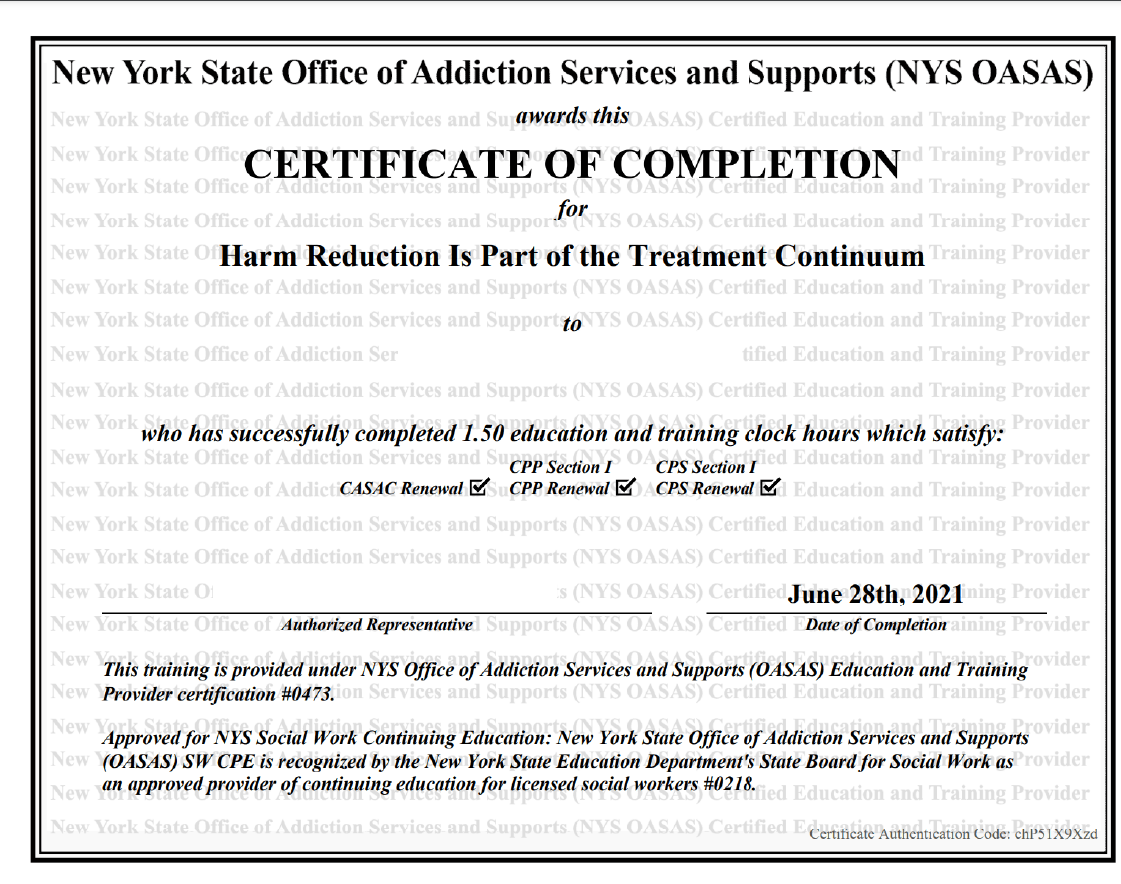

If you are having a hard time finding your certificate from our external training partner, please reach out to them using the contact information found on their website.
Step 2: Download your Certificate
Once you have earned your certificate of completion, download it to a memorable location on your computer. For Example:
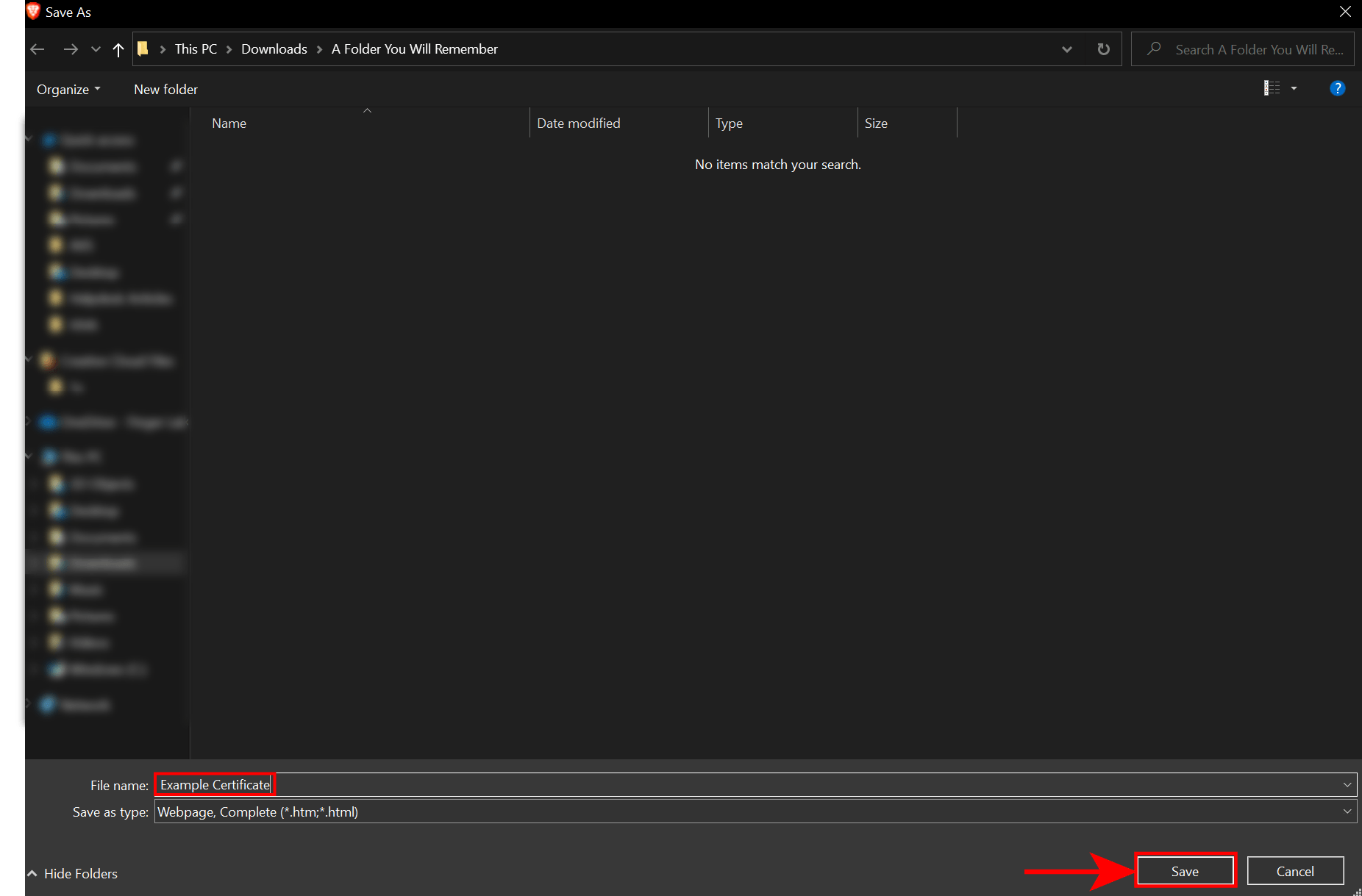
Upload your Certificate
Step 1: Attach your Certificate to the Assignment Submission Cloud

You can either physically drag your certificate with your mouse and drop it onto the green upload cloud pictured above, or you can click the cloud, which will open your File Explorer. Locate the correct file (outlined in red below) and click open.
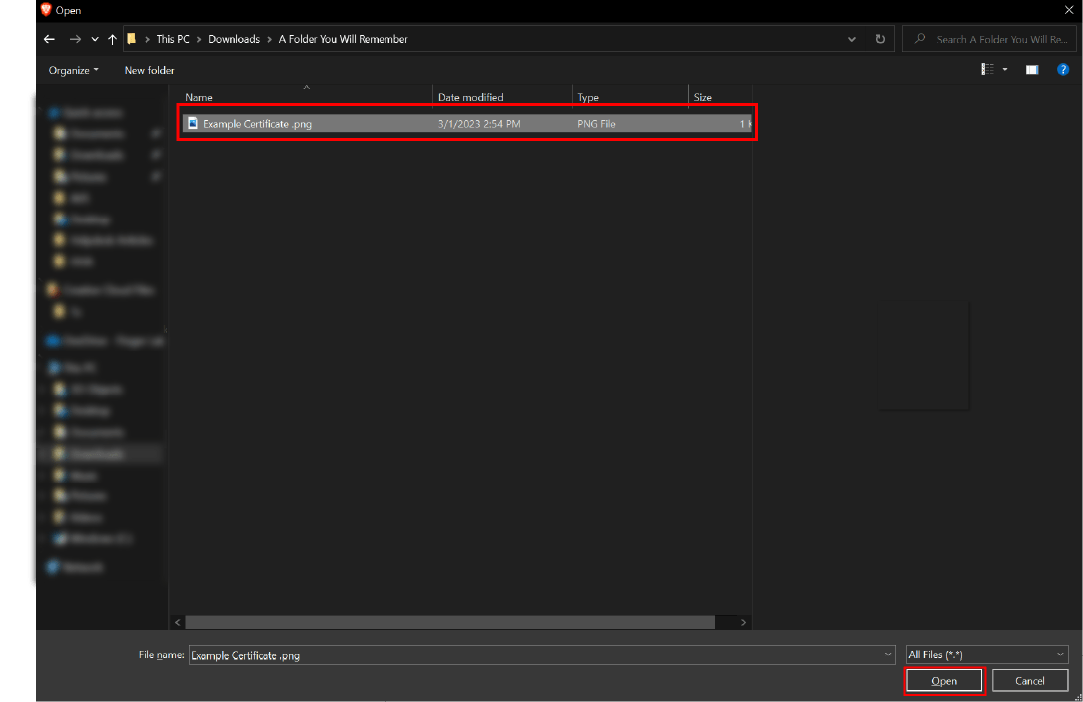
Step 2: Submit your Certificate for Approval
One you click open in your File Explorer, the Certificate will be uploaded to the FLPPS LMS. After it finishes uploading, your screen will look like this: 
Remember to give your Assignment Name a title. In this case, we called it Example Certificate. Finally, click Submit Assignment.
Now, you will see this:
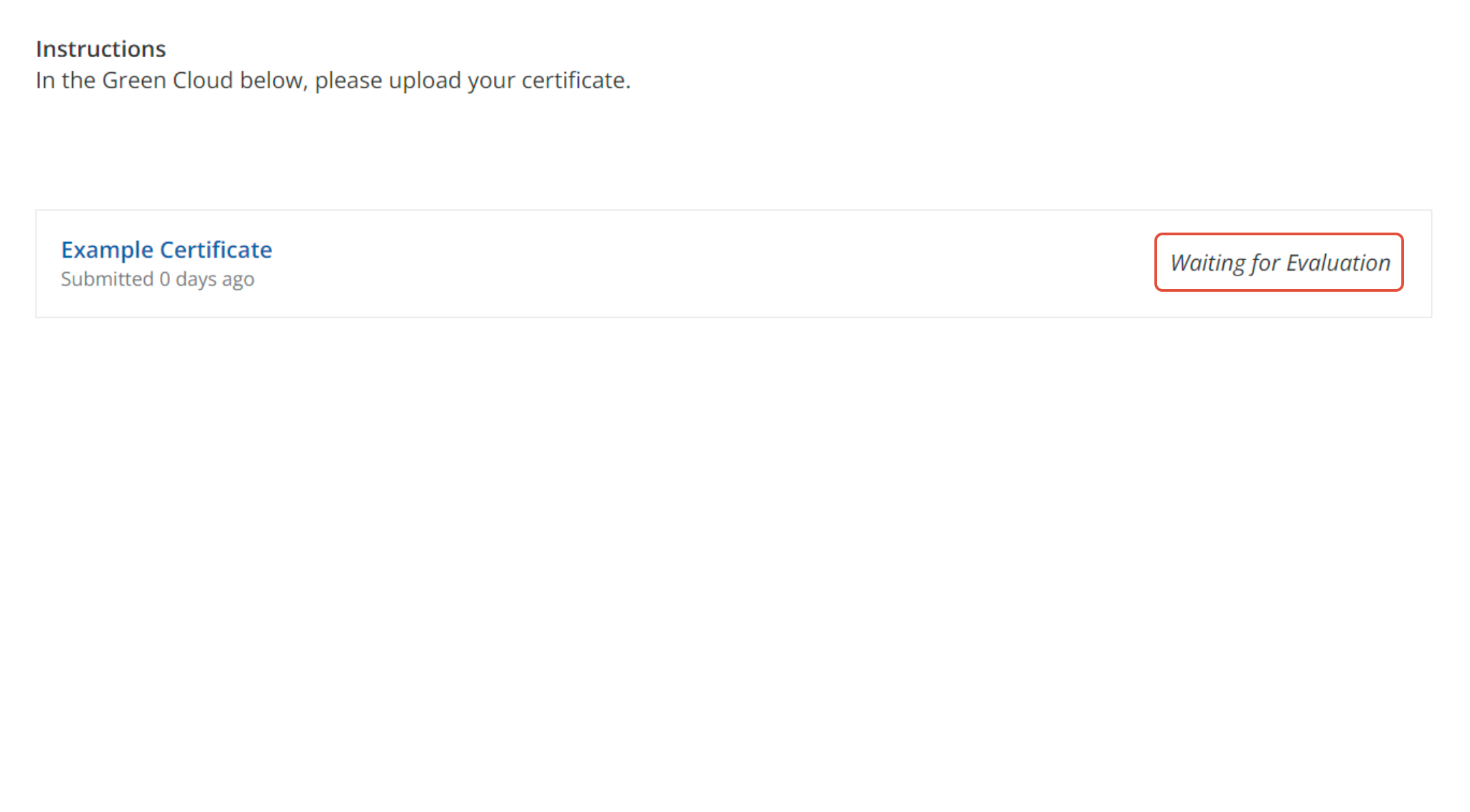
This means you have uploaded your certificate correctly and can now wait for your instructor or manager to approve or reject the certificate you've uploaded. If approved, this will complete the course. If rejected, it is possible you uploaded the wrong file (or uploaded a different certificate to the course in question). Feel free to reach out to your instructor or manager if this is the case.
Was this article helpful?
That’s Great!
Thank you for your feedback
Sorry! We couldn't be helpful
Thank you for your feedback
Feedback sent
We appreciate your effort and will try to fix the article