Everyone has forgotten their password from time to time. The FLPPS LMS Login Page makes it simple to reset your password.
How to Reset Your Password for the FLPPS Learning Management System
Here are the 5 steps you need to take to reset your password for the FLPPS LMS:
Step 1: Navigate to the FLPPS LMS
Step 2: Start Resetting Your Password
Step 3: Type in the Email Address Associated With Your Account
Step 4: Check Your Email for the Link to Reset Your Password
Step 5: Enter a New Password
Step 1: Navigate to the FLPPS LMS: https://lms.flpps.org/
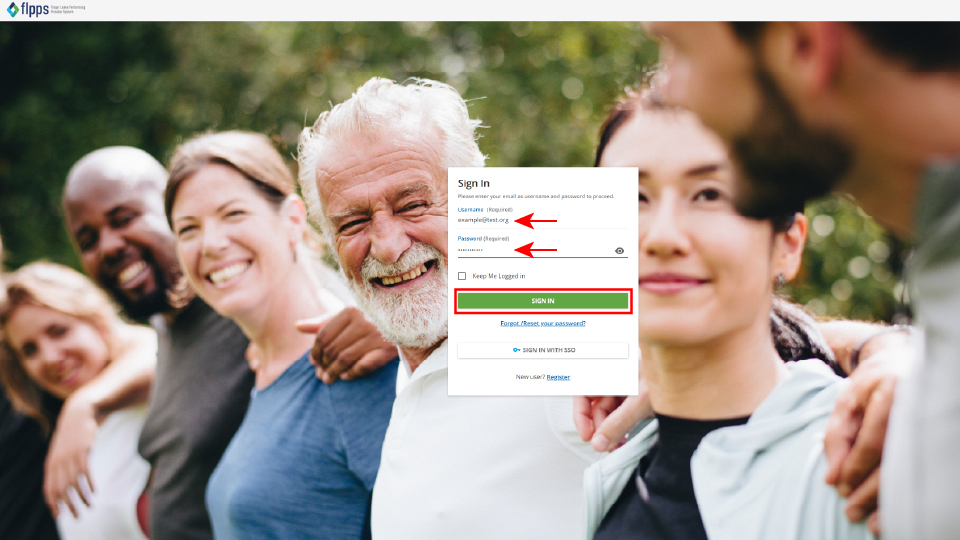 Once you are there, type your username and password. (Remember, your username is the same as your email address.)
- Click the green Sign In button.
Step 2: Start Resetting Your Password
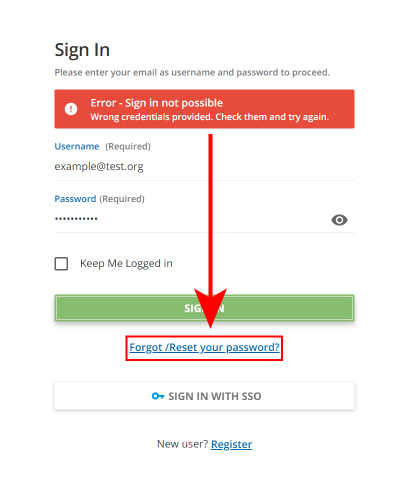
- Oh no, an error message! That's okay. Look below the green Sign In button to find the Forgot/Reset your password? link.
Step 3: Type in the Email Address Associated With Your Account
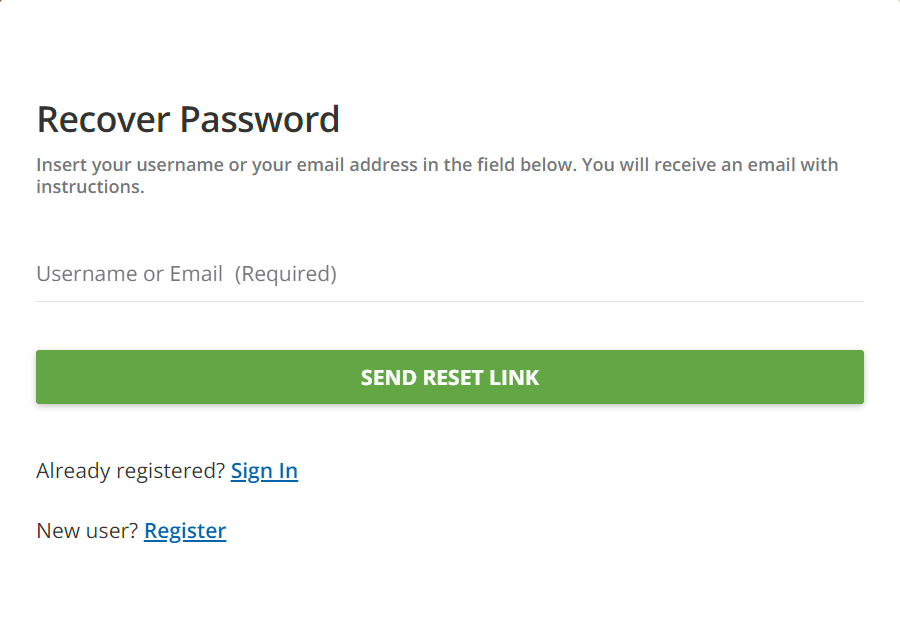
- Accurately type your email address.
- It is most common for users to login with their work email.
- After doing that, click the green Send Reset Link
- You will see this message:
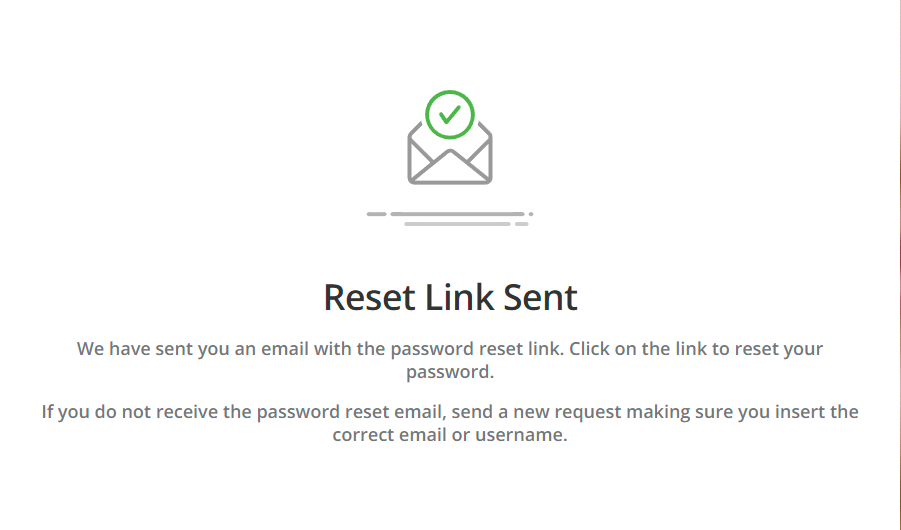
Step 4: Check Your Email for the Link to Reset Your Password
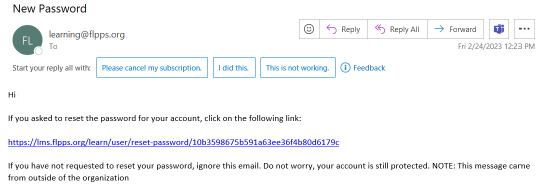
- It should look similar to the example above.
- If you did not receive this email, please check your spam folder.
Step 5: Enter a New Password
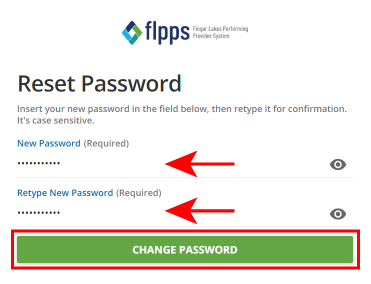
- Enter a new password.
- Retype the new password.
- Click the green Change Password button.
Note: Your password must be:
1. At least 8 characters long,
2. Contain both numbers and letters, and
3. Be different than your previous two passwords.
Was this article helpful?
That’s Great!
Thank you for your feedback
Sorry! We couldn't be helpful
Thank you for your feedback
Feedback sent
We appreciate your effort and will try to fix the article