If you manage a team, you know that it can be tricky to track everyone down for a discussion about a new training. Drafting an email about it might take a while. Waiting for your next team meeting might be too long. The FLPPS LMS makes it easy for managers to enroll their teammates into a course.
How to Assign Courses to a Team Member
Step 1: Navigate to My Team
A detailed explanation of how to Navigate to My Team is given here.
Step 2: Select the Users You Want to Assign
That's right, you can assign more than one user at a time. Choose the user or users you would like to assign to a course by clicking the circle in the top left of their card:
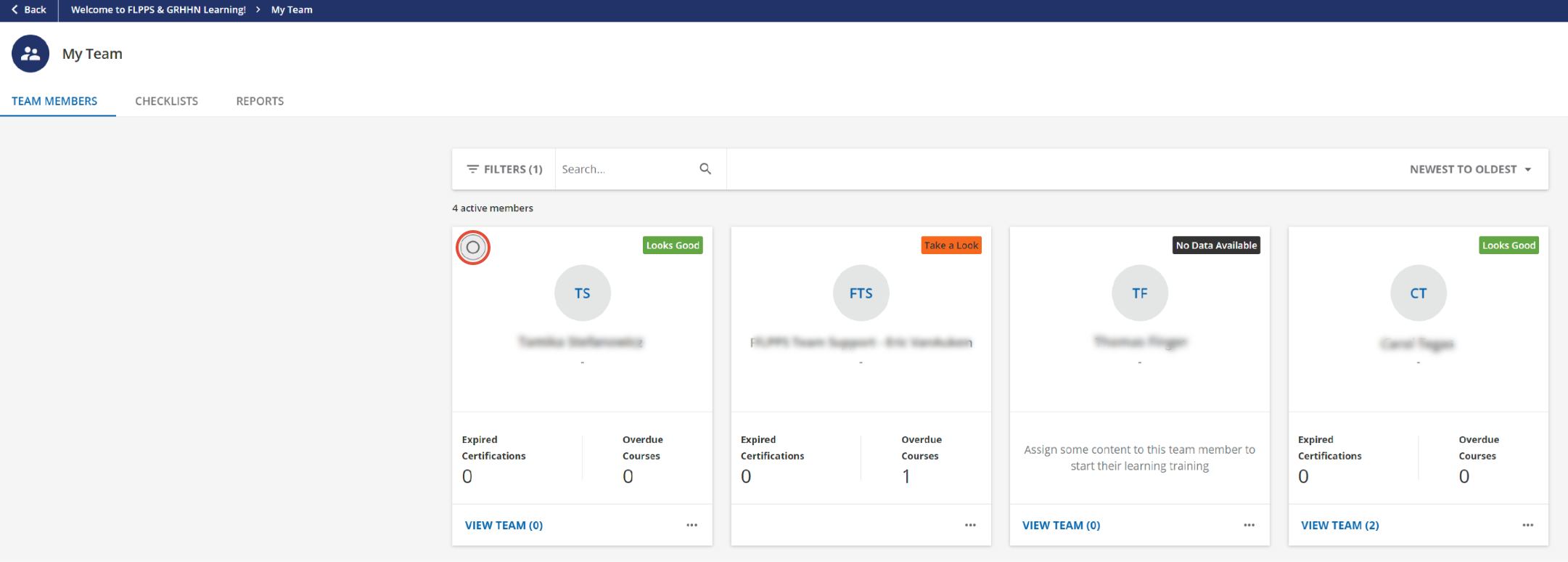
Note: In order to view this, you must hover over the user's card.
How it should look with users selected:
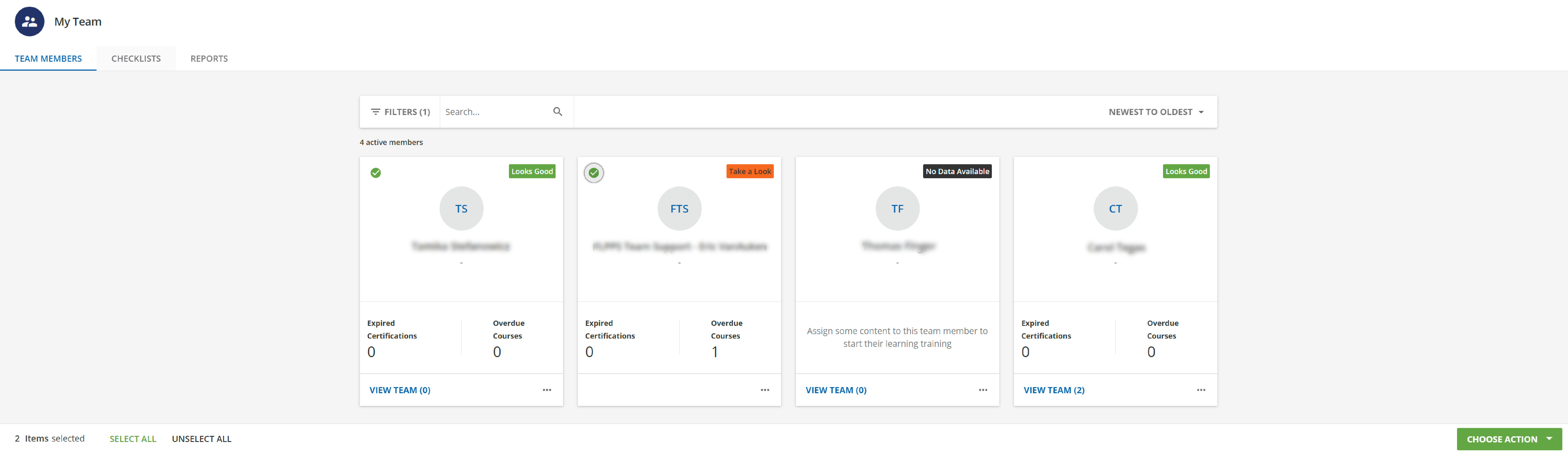
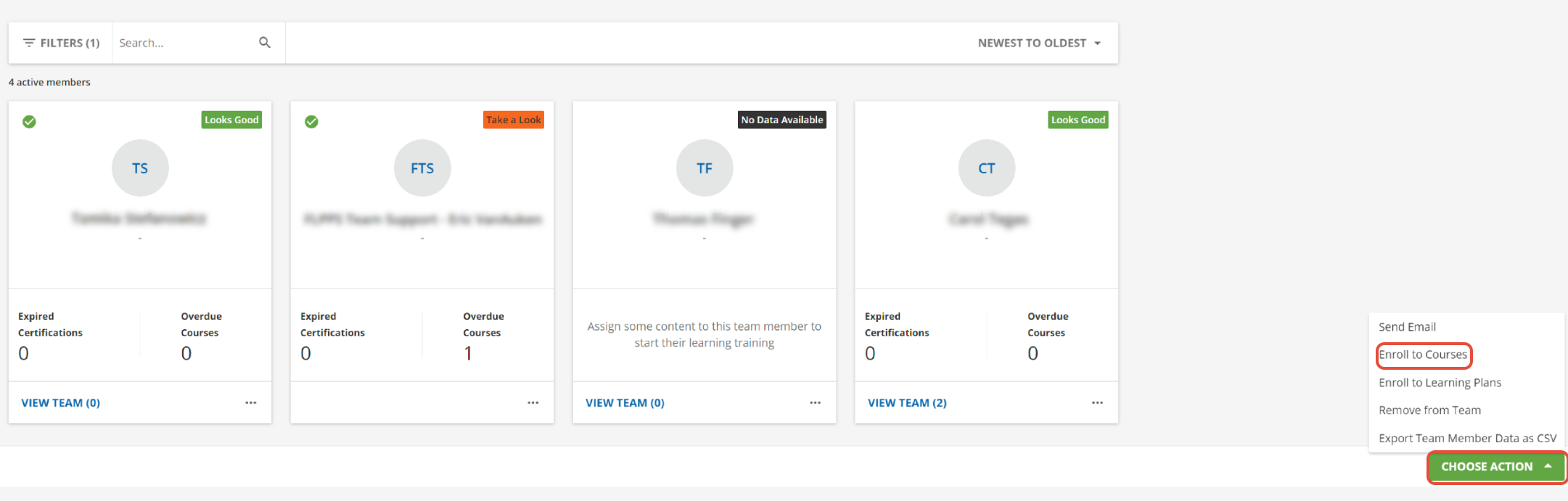
At the bottom right side of your screen, navigate to the green Choose Action button. When clicked, it will give you a list of items to choose from. Choose Enroll to Courses:
Step 3: Assign the Course
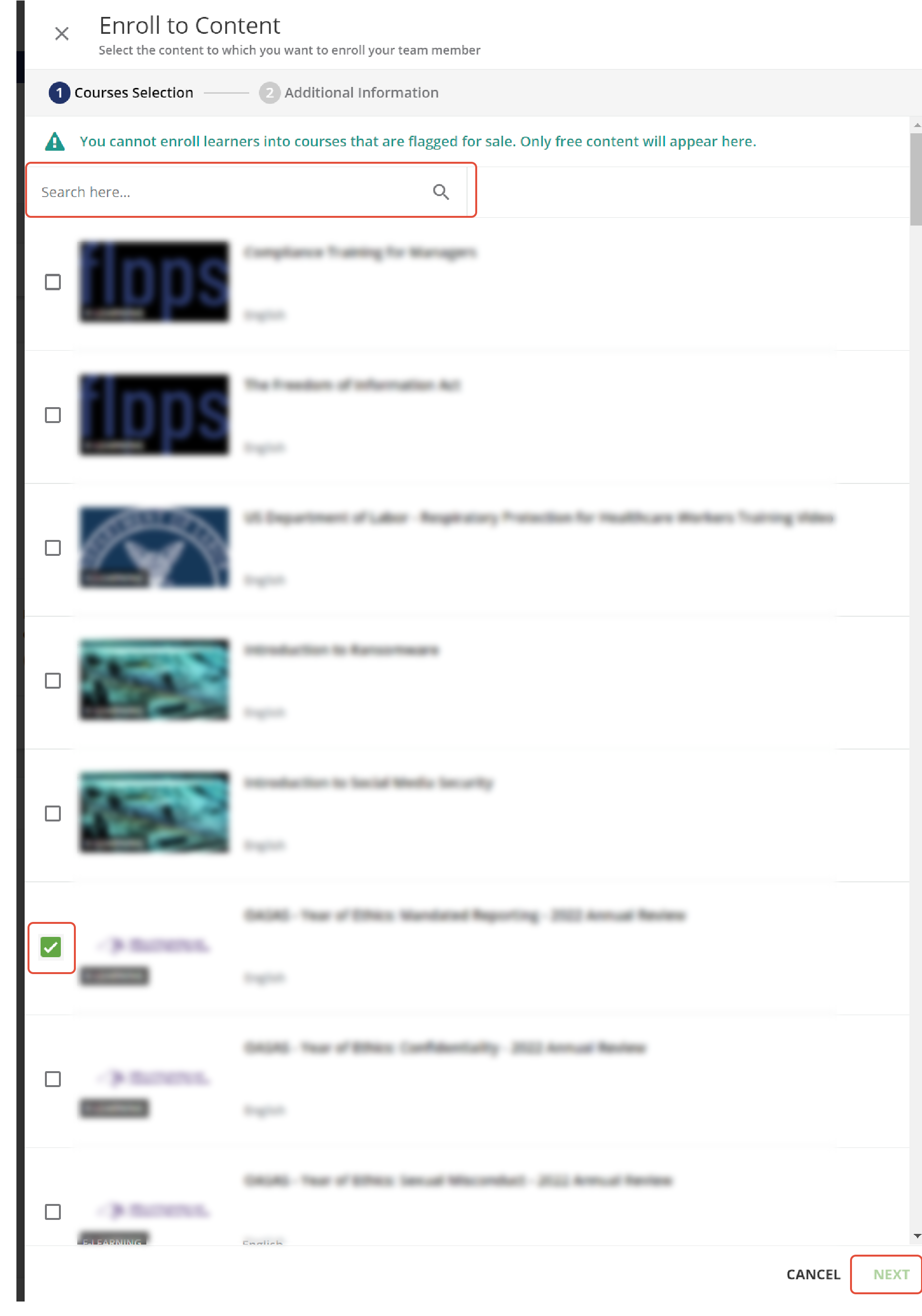
This screen allows you to search for the course (or courses) that you'd like to assign. To select, click the checkbox to the left of the course icon. When finished, click Next at the bottom right corner of your screen:
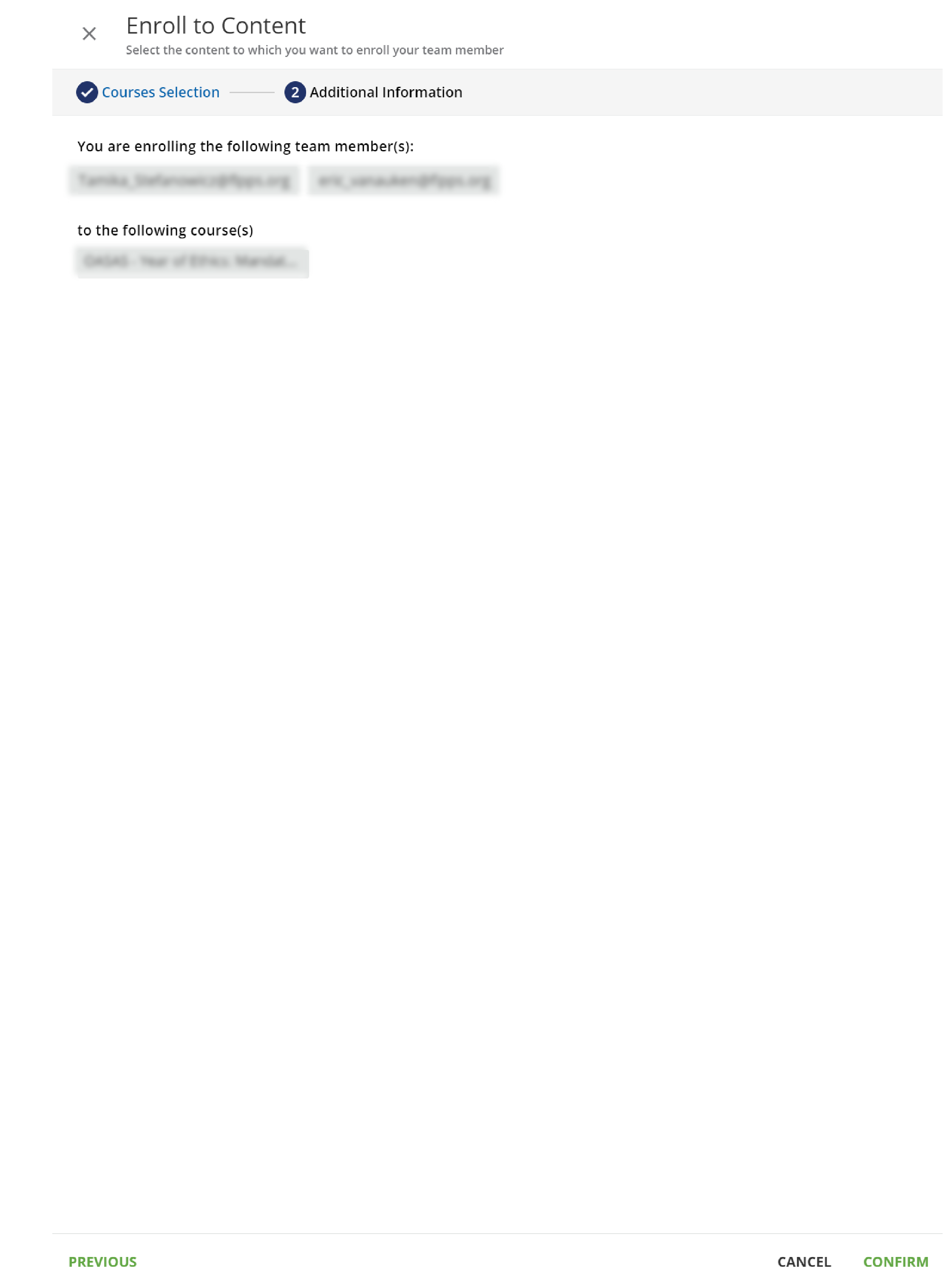
The next screen gives you a summary. At the very bottom right corner of your screen, select Confirm to confirm these enrollments:
Was this article helpful?
That’s Great!
Thank you for your feedback
Sorry! We couldn't be helpful
Thank you for your feedback
Feedback sent
We appreciate your effort and will try to fix the article