One of the most important features a manager can utilize in the FLPPS LMS is viewing and interacting with their team members. In this tutorial, we will cover how to look at a team member's profile.
How to View a Team Member's Profile
Step 2: Locate Your Team Member
Step 3: Navigate to their User Summary Report
Step 1: Navigate to My Team
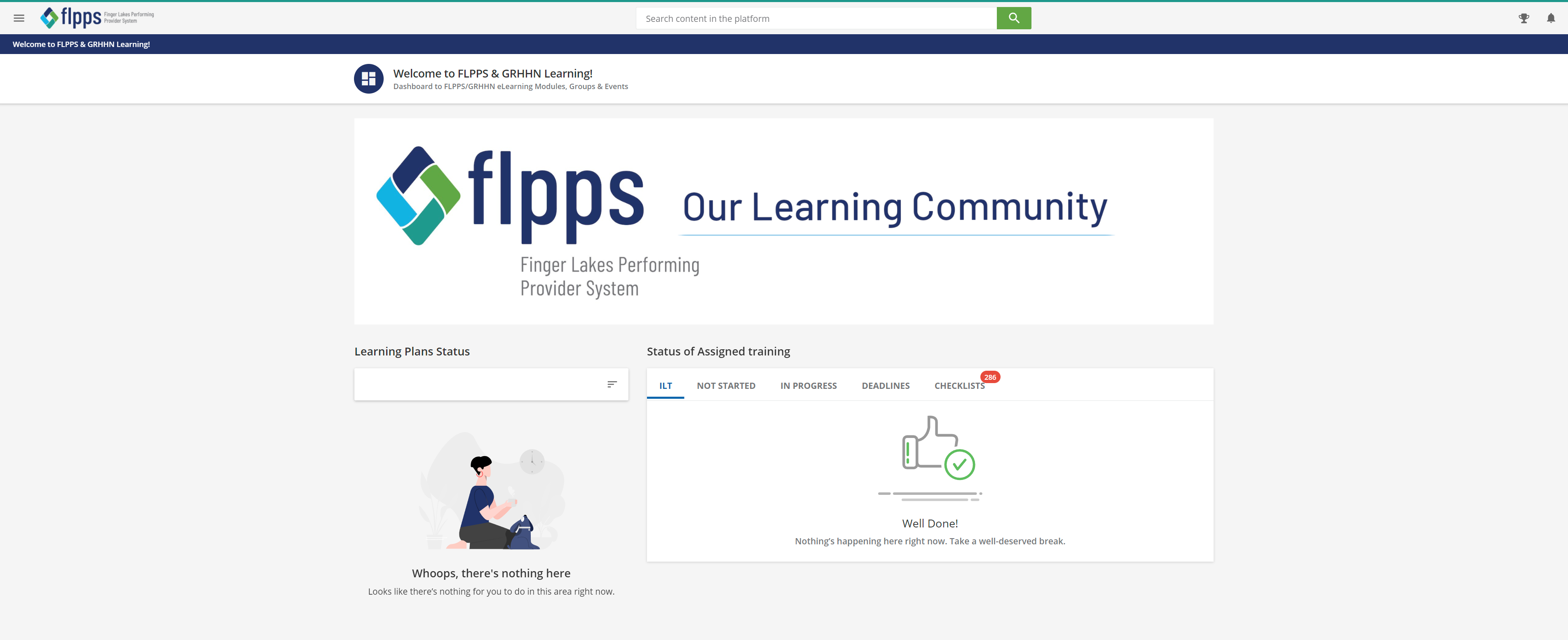
After logging into lms.flpps.org, your landing page will look similar to this:
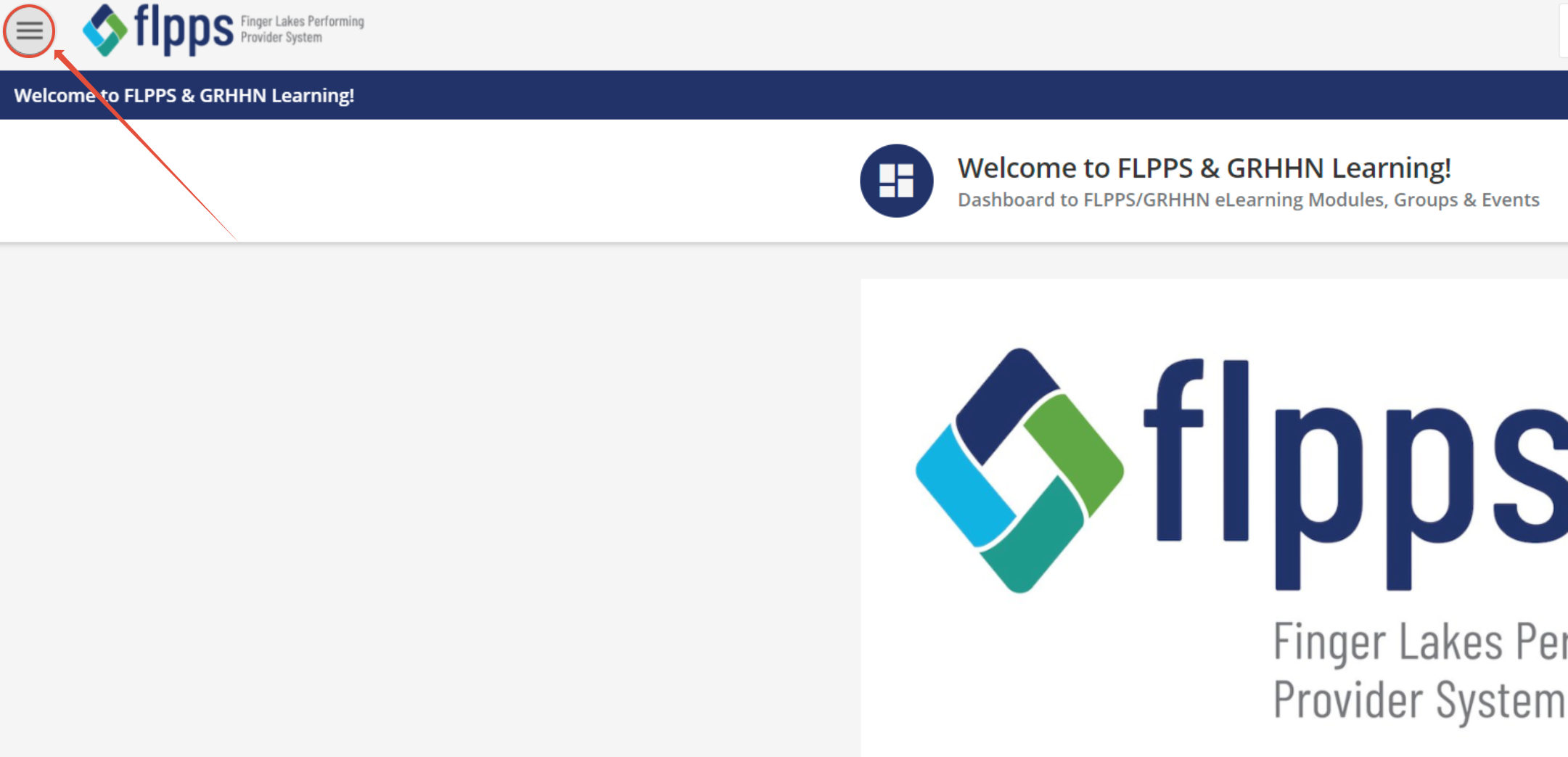
In the top right corner, you will see a hamburger menu:
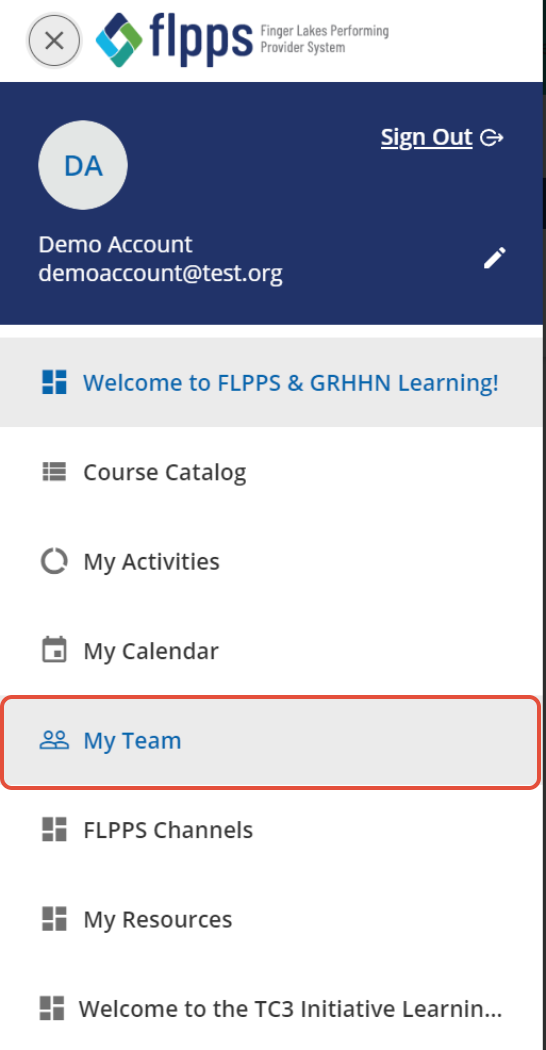
When you click the menu, it will drop down a list of choices similar to the ones found below. Find the My Team item.
Step 2: Locate Your Team Member
After clicking the My Team page, you will land here:
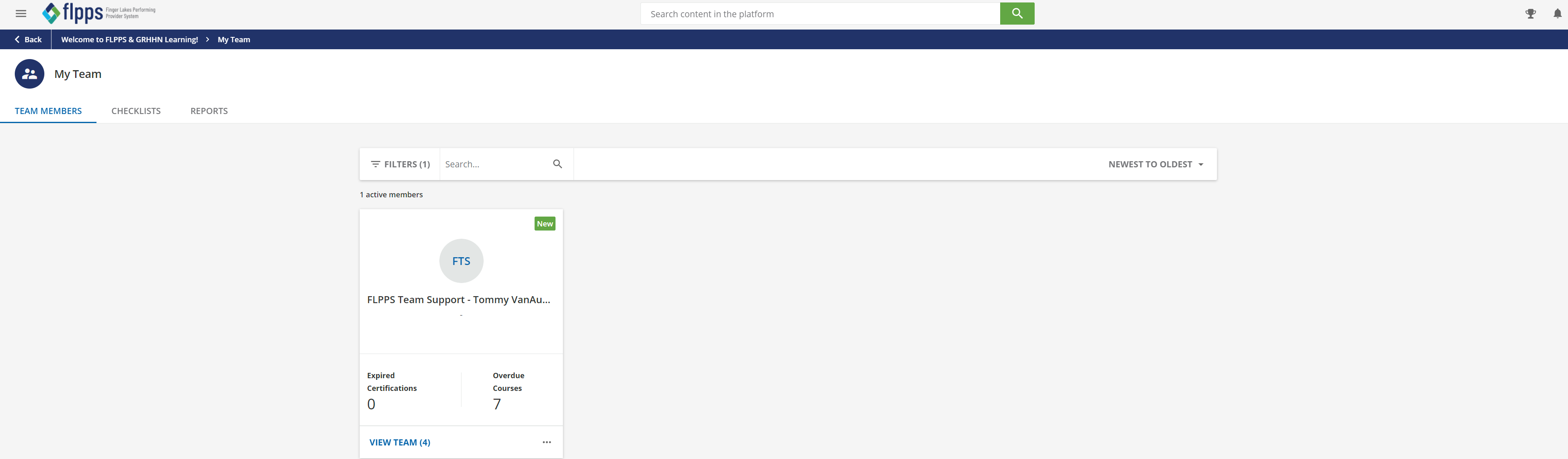
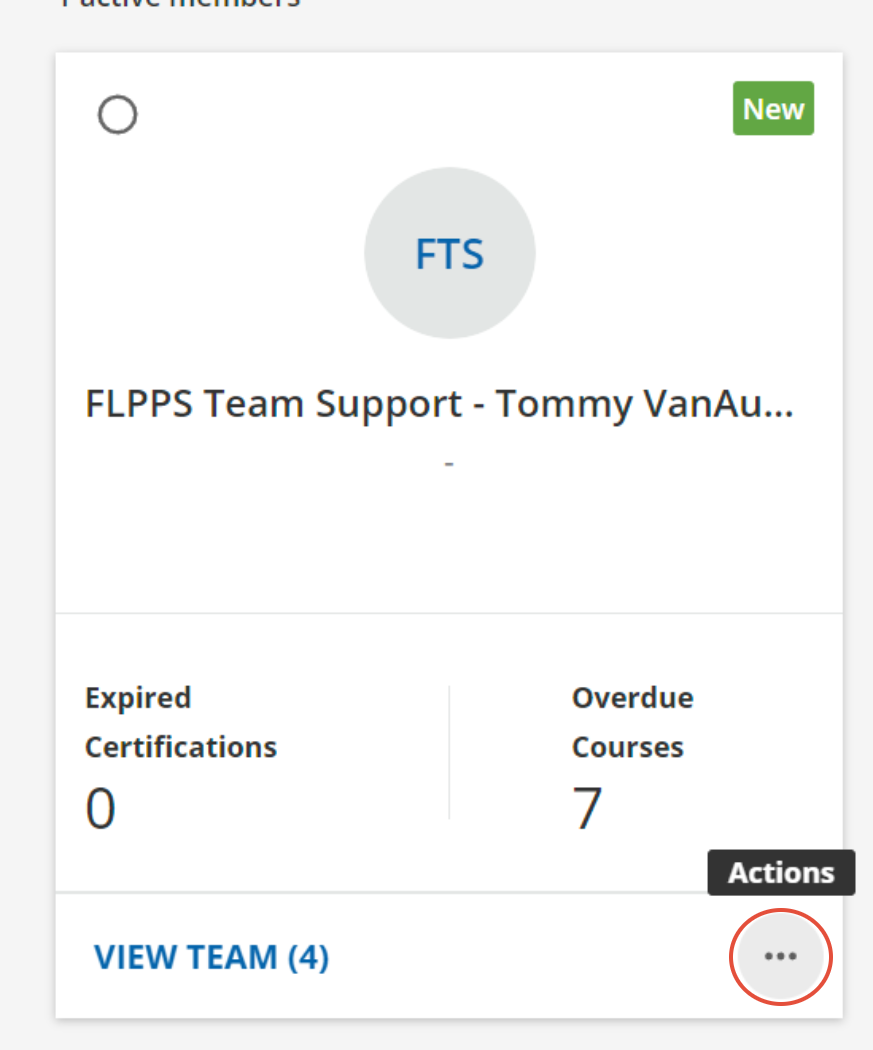
Locate the team member whose profile you wish to view. At the bottom right of that person's card, there is an ellipsis with an actions menu. Click it:
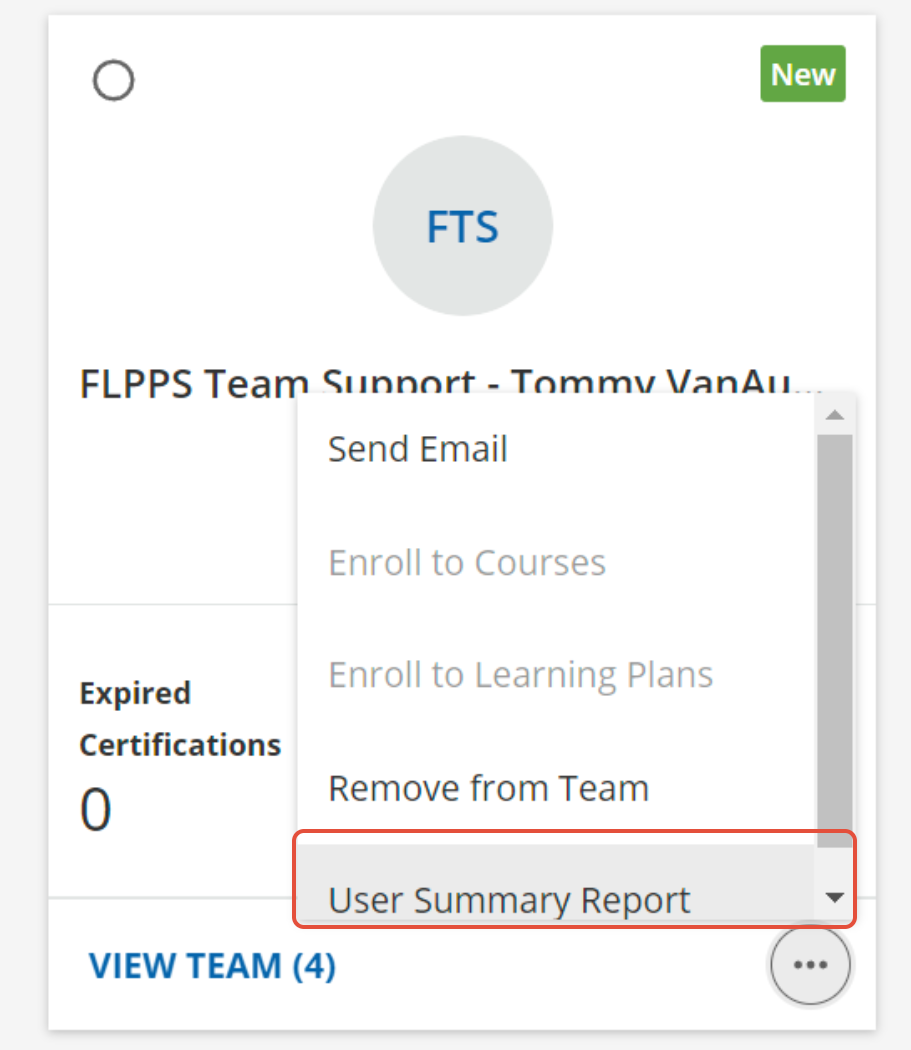
Step 3: Navigate to their User Summary Report
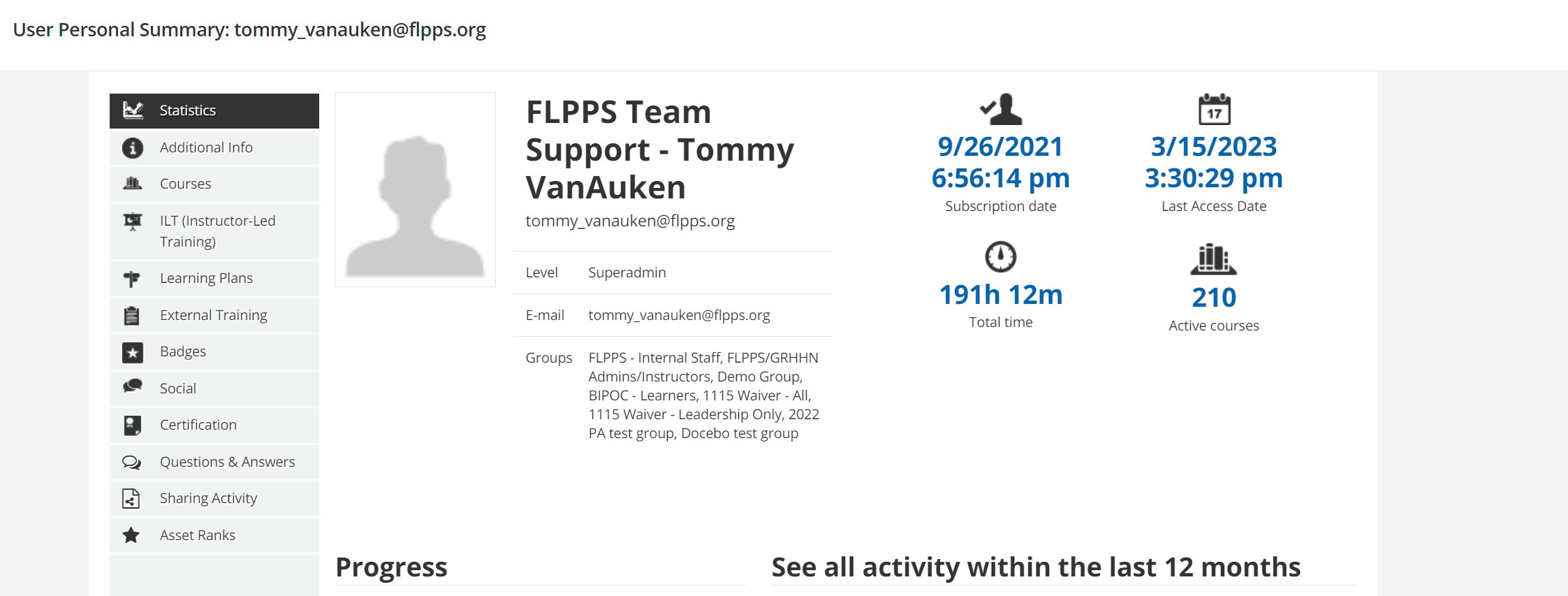
From here, you will see the User Personal Summary. Along the left hand side you will notice a series of tabs, all containing information pertaining to the user you selected.
Was this article helpful?
That’s Great!
Thank you for your feedback
Sorry! We couldn't be helpful
Thank you for your feedback
Feedback sent
We appreciate your effort and will try to fix the article